
Advertisement
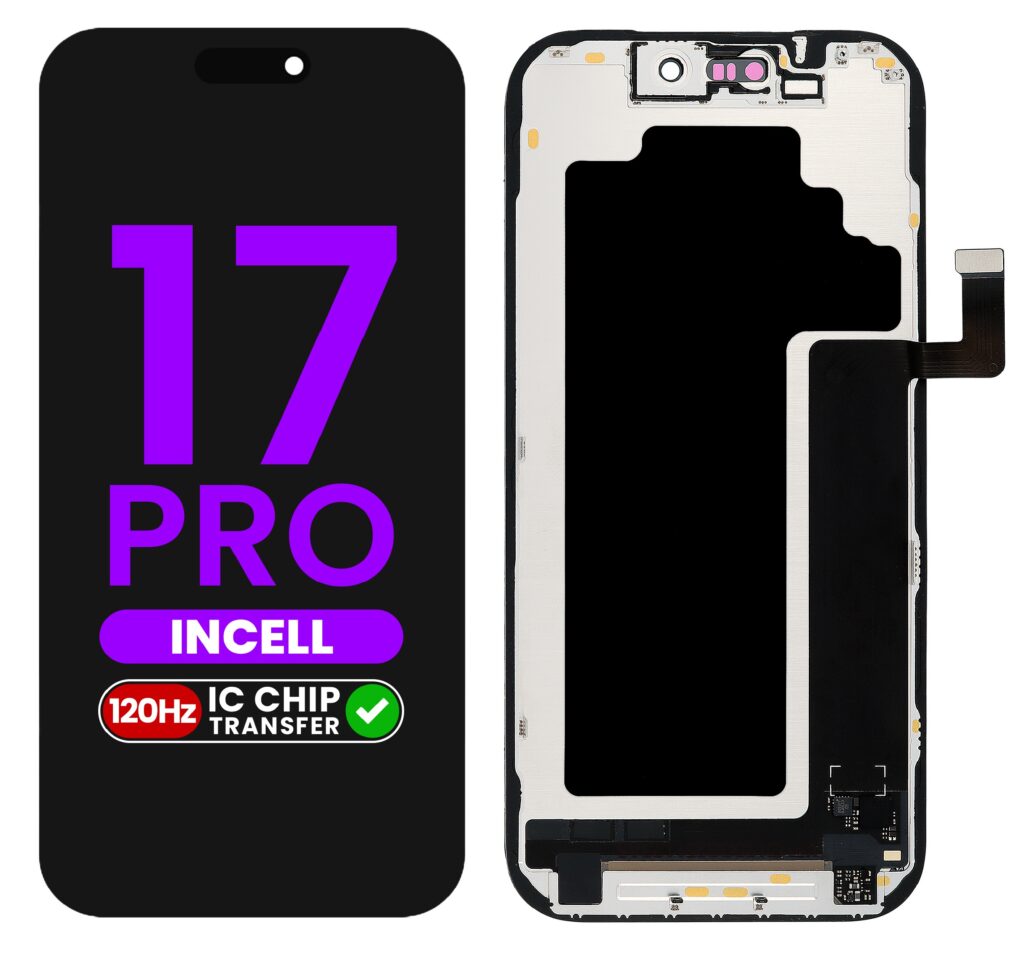
The iPhone 17 Pro is one of the most advanced smartphones available today, featuring cutting edge hardware, enhanced AI capabilities, and a refined iOS experience. However, like any sophisticated device, it can occasionally run into issues ranging from minor glitches to more serious hardware problems.
In this comprehensive guide, you’ll learn how to fix common iPhone 17 Pro issues step-by-step. Whether your device is freezing, not charging, overheating, or experiencing connectivity problems, this article will help you diagnose and resolve the problem effectively without risking your data or violating warranty terms.
IPhone 17 Pro screen Review
- Understanding Common iPhone 17 Pro Problems
- Basic Troubleshooting Steps
- Fixing iPhone 17 Pro Not Turning On
- Resolving Battery Drain Issues
- Fixing Charging Problems
- Overheating Issues and Solutions
- Fixing Screen Problems
- Connectivity Issues (Wi-Fi, Bluetooth, Cellular)
- App Crashes and Software Bugs
- Storage and Performance Optimization
- Camera Not Working Properly
- Face ID and Security Issues
- When to Reset or Restore Your iPhone
- When to Seek Professional Help
- Preventive Maintenance Tips
- Conclusion
1. Understanding Common iPhone 17 Pro Problems
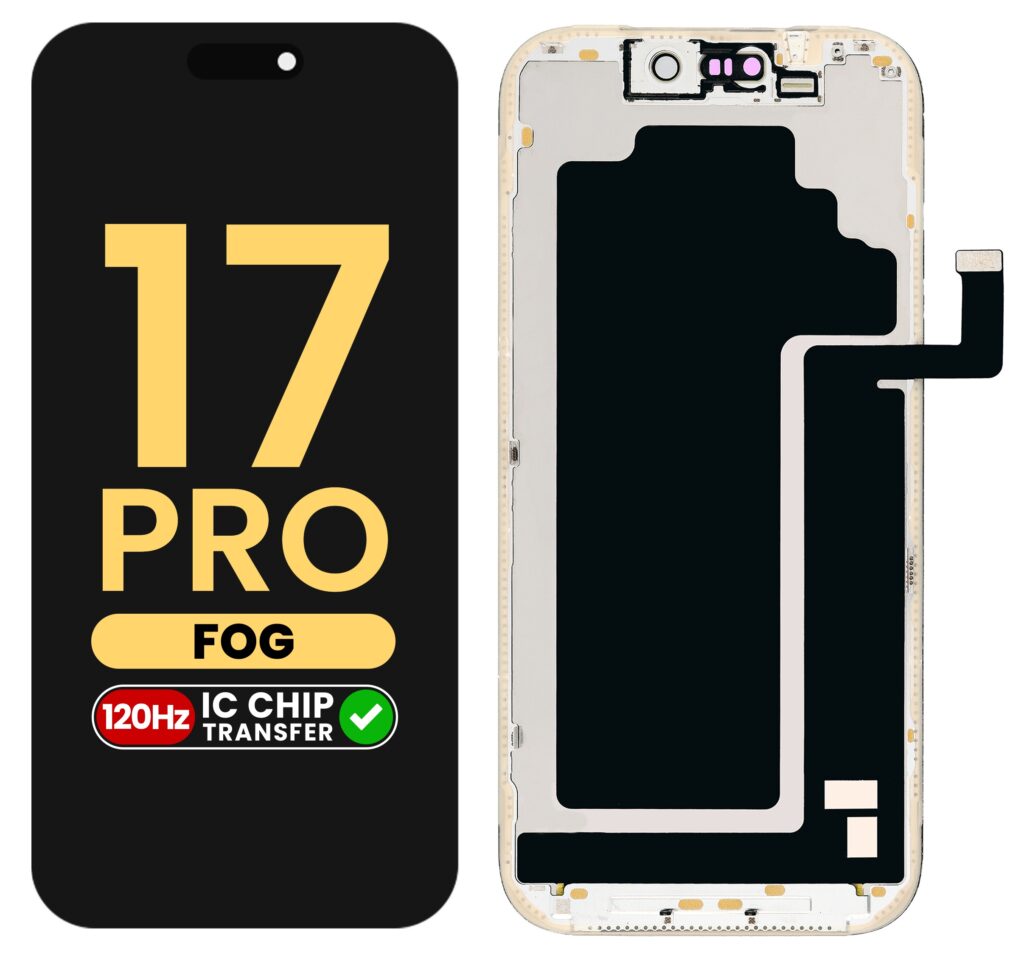
Before jumping into solutions, it’s important to identify what kind of problem you’re dealing with. Most iPhone 17 Pro issues fall into two categories:
Advertisement
- Software-related problems: Bugs, app crashes, iOS glitches
- Hardware-related problems: Battery wear, screen damage, faulty components
Correct diagnosis saves time and prevents unnecessary repairs.
2. Basic Troubleshooting Steps
Always start with these universal fixes:
Restart Your iPhone
A simple restart resolves many temporary glitches.
- Press and hold the side button + volume button
- Slide to power off
- Wait 30 seconds, then turn it back on
Update iOS
Outdated software can cause instability.
- Go to Settings → General → Software Update
- Install the latest version
Check for App Updates
- Open App Store → Tap your profile → Update all apps
3. Fixing iPhone 17 Pro Not Turning On
If your device won’t power on:
Step 1: Force Restart
- Quickly press Volume Up
- Quickly press Volume Down
- Press and hold the Side Button until Apple logo appears
Step 2: Charge Your Device
- Plug into a charger for at least 30 minutes
- Use an original or certified cable
Step 3: Check for Hardware Damage
If there’s no response after charging and restarting, internal hardware may be affected.
4. Resolving Battery Drain Issues
Battery draining too fast is a common complaint.
Causes:
- Background apps
- High screen brightness
- Location services
- iOS bugs
Fixes:
Enable Low Power Mode
Settings → Battery → Turn on Low Power Mode
Check Battery Usage
Identify apps consuming excessive power.
Disable Background App Refresh
Settings → General → Background App Refresh → Off
Reduce Screen Brightness
Lower brightness or enable auto-brightness.
5. Fixing Charging Problems
If your iPhone 17 Pro won’t charge properly:
Common Reasons:
- Dirty charging port
- Faulty cable
- Software glitch
Solutions:
Clean Charging Port
Use a soft brush or toothpick carefully.
Try another Charger
Use certified accessories only.
Restart the Device
Software bugs can interrupt charging.
6. Overheating Issues and Solutions
Overheating can affect performance and battery health.
Causes:
- Heavy gaming
- Charging while using
- Hot environment
Fixes:
- Remove phone case
- Avoid direct sunlight
- Stop heavy apps
- Let the phone cool down before charging
7. Fixing Screen Problems
Common Issues:
- Touch not responding
- Screen flickering
- Black screen
Solutions:
Clean the Screen
Dirt or moisture can affect touch sensitivity.
Force Restart
Fixes temporary glitches.
Check Screen Protector
Remove if interfering with touch.
8. Connectivity Issues (Wi-Fi, Bluetooth, Cellular)
Wi-Fi Not Working
- Toggle Wi-Fi off and on
- Restart router
- Forget and reconnect to network
Bluetooth Issues
- Turn Bluetooth off and on
- Remove and re-pair devices
Cellular Problems
- Toggle Airplane mode
- Reinsert SIM card
- Check carrier settings
9. App Crashes and Software Bugs
Causes:
- Outdated apps
- Incompatible software
- Corrupted data
Fixes:
- Update apps
- Reinstall problematic apps
- Restart your device
10. Storage and Performance Optimization
A slow iPhone can be frustrating.
Tips:
- Delete unused apps
- Clear photos/videos
- Use cloud storage
- Offload unused apps
Enable Optimize Storage
Settings → Photos → Optimize iPhone Storage
11. Camera Not Working Properly
Issues:
- Blurry photos
- App not opening
- Focus problems
Fixes:
- Clean camera lens
- Restart device
- Reset camera settings
- Update iOS
12. Face ID and Security Issues
Common Problems:
- Face ID not recognizing
- Slow authentication
Solutions:
- Reset Face ID
- Re-scan your face
- Clean front camera
13. When to Reset or Restore Your iPhone
If problems persist, a reset may help.
Reset Settings (No Data Loss)
Settings → General → Transfer or Reset → Reset → Reset All Settings
Factory Reset (Data Loss)
Back up first, then:
Settings → General → Transfer or Reset → Erase All Content and Settings
14. When to Seek Professional Help
If none of the fixes work, you may need expert assistance.
Signs You Need Help:
- Water damage
- Cracked screen
- Battery swelling
- Persistent hardware failure
Visit an authorized repair center for safe repairs.
15. Preventive Maintenance Tips
Avoid future issues with these habits:
- Keep software updated
- Use certified accessories
- Avoid extreme temperatures
- Regularly clean your device
- Back up data frequently
16. Conclusion
The iPhone 17 Pro is a powerful device, but even the best technology can encounter issues. Fortunately, most problems can be resolved with simple troubleshooting steps like restarting, updating software, or adjusting settings.
For more complex issues, knowing when to reset your device or seek professional help can save both time and money. By following the steps in this guide, you can keep your iPhone 17 Pro running smoothly and extend its lifespan significantly.
Advanced Troubleshooting Techniques for iPhone 17 Pro
If the basic fixes didn’t resolve your issue, don’t worry there are more advanced troubleshooting techniques you can try before seeking professional repair. These methods go deeper into system-level fixes and can address persistent or complex problems.
Reset Network Settings
If you’re experiencing ongoing issues with Wi-Fi, Bluetooth, or mobile data, resetting your network settings can help eliminate hidden configuration errors.
- Go to Settings → General → Transfer or Reset iPhone → Reset → Reset Network Settings
- Enter your passcode if prompted
- Your device will restart automatically
Important: This will erase saved Wi-Fi passwords, so make sure you have them available before proceeding.
Clear System Cache (Indirect Method)
Unlike some Android devices, iPhones don’t provide a direct way to clear cache. However, you can achieve a similar result by:
- Restarting your device regularly
- Deleting and reinstalling problematic apps
- Offloading unused apps
This helps free up memory and improve overall performance.
Check for Background Processes
Some apps continue running in the background and consume resources.
- Double-click the Home indicator (or swipe up and hold)
- Close unused apps by swiping them up
This can significantly improve speed and battery life.
Fixing Audio and Sound Issues
Sound problems can affect calls, media playback, and notifications.
Common Issues:
- No sound during calls
- Speaker not working
- Distorted audio
Solutions
Check Volume Settings
Make sure volume is turned up and not muted.
Disable Silent Mode
Ensure the silent switch is off.
Clean Speakers
Dust and debris can block sound output.
Test with Headphones
This helps determine if the issue is with the speaker or system.
Fixing Touchscreen Sensitivity Problems
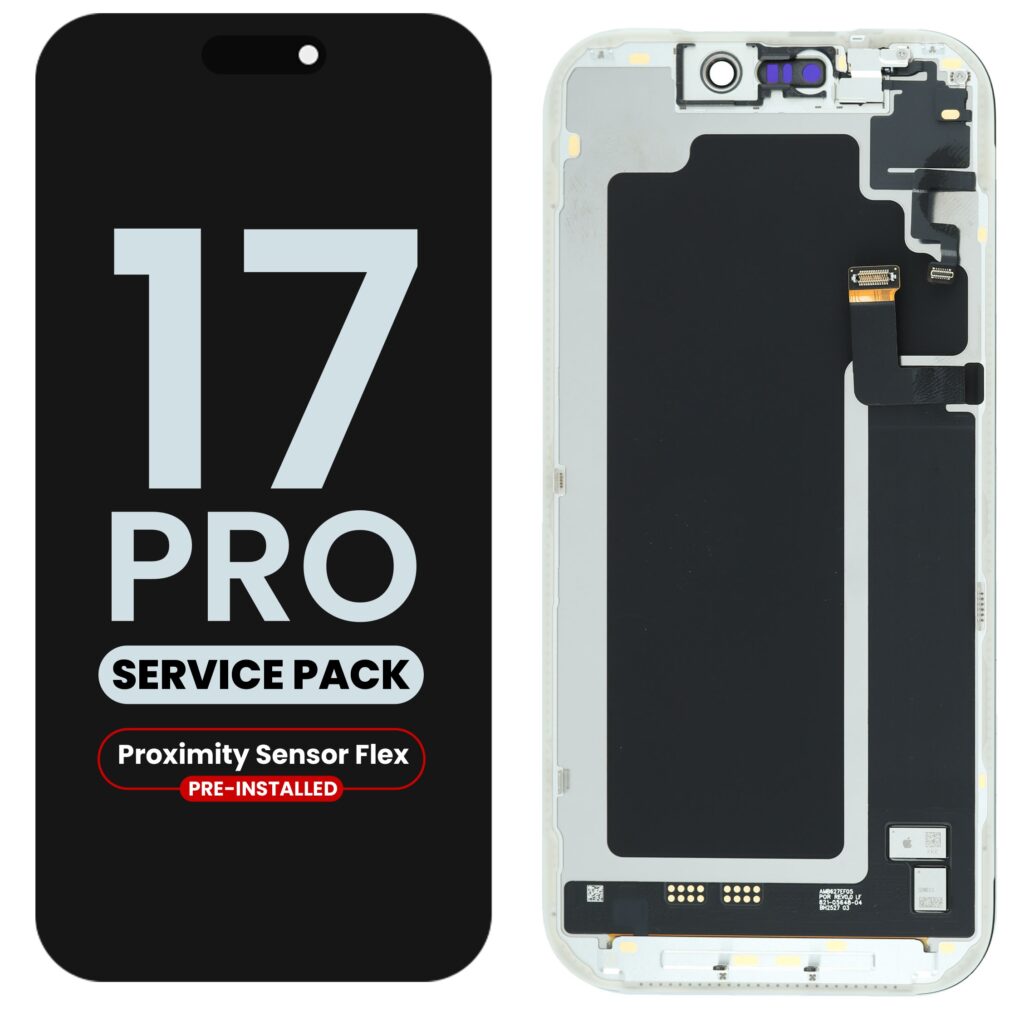
If your touchscreen feels slow or unresponsive:
Possible Causes:
- Screen protector interference
- Software lag
- Moisture or dirt
Fixes
- Remove or replace screen protector
- Clean the screen with a microfiber cloth
- Restart your phone
- Update iOS
If the issue persists, it may indicate hardware damage.
Dealing with Random Reboots
Unexpected restarts can be alarming.
Causes:
- Software bugs
- Faulty apps
- Overheating
Fixes:
- Update iOS
- Delete recently installed apps
- Check battery health
- Reset settings
Fixing Notification Problems
Missing notifications can lead to missed calls and messages.
Solutions:
- Check Settings → Notifications
- Ensure app notifications are enabled
- Disable Focus or Do Not Disturb mode
- Restart your device
iPhone 17 Pro Freezing or Lagging
Performance issues often occur over time.
Fixes:
- Free up storage space
- Restart the device
- Disable unnecessary animations (Accessibility settings)
- Update apps and iOS
Water Damage: What to Do Immediately
If your iPhone 17 Pro comes into contact with water:
Immediate Steps:
- Turn off the device immediately
- Remove any accessories
- Dry the exterior with a cloth
- Do NOT use a hairdryer
- Leave it in a dry area with airflow
Avoid charging until you’re sure the device is completely dry.
Fixing Keyboard Issues
Keyboard problems can affect typing speed and accuracy.
Common Issues:
- Lagging keyboard
- Incorrect suggestions
- Keyboard not appearing
Fixes:
- Restart your device
- Reset keyboard dictionary
- Update iOS
- Switch keyboards and switch back
Managing Heat While Gaming or Heavy Usage
If you frequently use your phone for gaming or video editing:
Tips:
- Lower graphics settings in games
- Close background apps
- Avoid charging while gaming
- Take breaks to let the phone cool
Using Safe Mode Alternatives (App Isolation)
While iPhones don’t have a traditional safe mode, you can isolate issues by:
- Deleting suspicious apps
- Testing performance after removing apps
- Reinstalling apps one by one
This helps identify problematic applications.
IPhone 17 Pro Software Recovery Using a Computer
If your phone is unresponsive:
Recovery Mode Steps:
- Connect your iPhone to a computer
- Open Finder (Mac) or iTunes (Windows)
- Force restart while connected
- Choose Update or Restore
This can fix serious system issues without replacing the device.
Protecting Your Data During Repairs
Before attempting major fixes:
- Back up your data using iCloud or a computer
- Sign out of your Apple ID if sending for repair
- Remove sensitive information
This ensures your data remains safe.
Signs Your iPhone Battery Needs Replacement
Even advanced batteries degrade over time.
Warning Signs:
- Rapid battery drain
- Unexpected shutdowns
- Battery health below 80%
Replacing the battery can restore performance significantly.
Understanding Warranty and Repair Options
Before opening or repairing your iPhone:
- Check warranty status
- Avoid unauthorized repairs
- Use certified technicians
Unauthorized repairs may void your warranty.
Final Thoughts: Keep your iPhone 17 pro running Like New
Fixing an iPhone 17 Pro doesn’t always require technical expertise. In many cases, simple steps like restarting, updating software, or adjusting settings can resolve most issues.
However, understanding deeper troubleshooting methods gives you the confidence to handle more complex problems without panic. Regular maintenance, smart usage habits, and timely updates can prevent most issues before they even occur.
By following all the strategies in this guide, you’ll not only fix your iPhone 17 Pro but also extend its lifespan, improve its performance, and ensure a smoother everyday experience.
Advertisement