
Advertisement
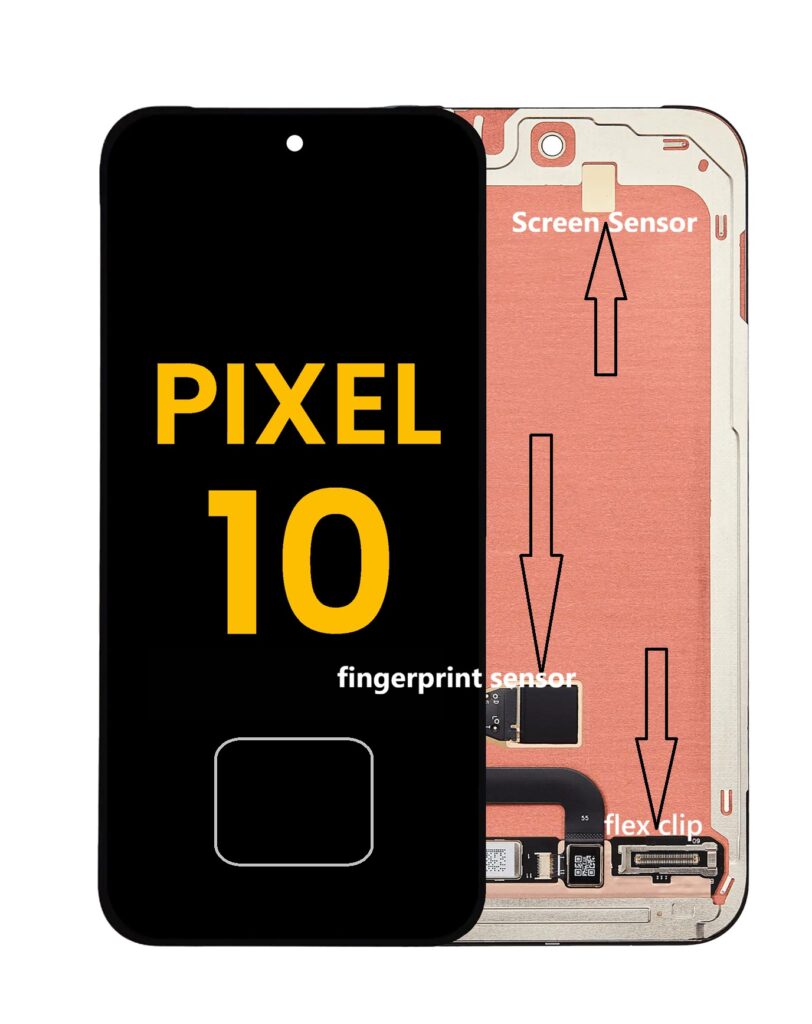
Smartphones have become an essential part of everyday life, and when something goes wrong especially with the display it can feel like everything comes to a halt. If you’re dealing with a damaged or malfunctioning LCD screen on your Google Pixel 10, you’re not alone. Screen issues are among the most common smartphone problems, but the good news is that many of them can be fixed with the right approach. In this guide, we will help you learn how to fix Google Pixel 10 screen issues effectively.
This comprehensive guide will walk you through everything you need to know about diagnosing, fixing, and preventing LCD screen issues on your Google Pixel 10. Whether you’re considering a DIY repair or exploring professional options, this article covers it all.
Understanding the Google Pixel 10 LCD Screen
Before diving into repairs, it’s important to understand what the LCD screen does and how it works.
Advertisement
The LCD (Liquid Crystal Display) is responsible for showing images, videos, and text on your phone. It works in conjunction with the touchscreen digitizer, which detects your touch inputs. In many modern smartphones, these components are fused together, meaning damage to one often affects the other.
Common LCD Screen Problems
Here are the most frequent issues users encounter with their Pixel 10 LCD screen:
Understanding how to fix Google Pixel 10 screen problems will empower you to tackle any display issues that arise.
1. Cracked Screen
A visible crack usually occurs after dropping the phone. While the display may still work, the damage can worsen over time.
2. Black Screen
The phone may be on, but the display shows nothing. This could indicate LCD failure or internal connection issues.
3. Flickering Display
Screen flickering can result from software glitches, loose connections, or hardware damage.
4. Dead Pixels
Small black or colored spots that don’t change indicate dead pixels, often caused by LCD damage.
5. Unresponsive Touch
If the screen doesn’t respond to touch, the digitizer may be damaged, even if the LCD appears fine.
Diagnosing the Problem
Before attempting any repair, determine whether the issue is software-related or hardware-related.
Software Troubleshooting Steps
- Restart Your Device
A simple reboot can fix temporary glitches. - Boot into Safe Mode
this helps identify if a third-party app is causing the issue. - Update Software
Ensure your phone is running the latest system update. - Factory Reset (Last Resort)
Back up your data before doing this. If the issue persists afterward, it’s likely hardware-related.
When to Repair vs Replace
Ask yourself these questions:
- Is the screen physically damaged?
- Does the display show distorted visuals?
- Is the touchscreen unresponsive?
If you answered yes to any of these, a screen replacement is likely necessary.
Tools You’ll Need for DIY Repair
If you choose to fix the screen yourself, gather the following tools:
- Replacement LCD screen compatible with Pixel 10
- Precision screwdriver set
- Plastic pry tools
- Suction cup
- Heat gun or hairdryer
- Tweezers
- Adhesive strips
Step-by-Step Guide to Fixing the LCD Screen
Step 1: Power Off the Device
Always turn off your phone before starting any repair to avoid electrical damage.
Step 2: Heat the Screen Edges
Use a heat gun or hairdryer to soften the adhesive around the screen. Be careful not to overheat.
Step 3: Remove the Screen
Attach a suction cup and gently pull while inserting a plastic pry tool to separate the screen from the body.
Step 4: Disconnect the Battery
Once inside, locate and disconnect the battery to prevent short circuits.
Step 5: Remove the Damaged Screen
Disconnect the display cable and carefully remove the broken screen.
Step 6: Install the New Screen
Attach the new LCD screen by connecting the display cable securely.
Step 7: Test Before Sealing
Power on the device before sealing it to ensure the new screen works properly.
Step 8: Reassemble the Phone
Apply new adhesive and carefully press the screen back into place.
Safety Tips During Repair
- Work in a clean, well-lit area
- Keep screws organized
- Avoid using metal tools near internal components
- Do not rush the process
Common Mistakes to Avoid
- Skipping the test before reassembly
- Using excessive force when prying
- Forgetting to disconnect the battery
- Buying low-quality replacement parts
Professional Repair Options
If DIY repair feels risky, consider professional services. Certified repair technicians have the expertise and tools to fix your phone safely.
Benefits of Professional Repair
- Warranty protection
- High-quality parts
- Faster turnaround time
- Reduced risk of further damage
Cost of Repair
The cost of fixing a Pixel 10 LCD screen depends on:
- Location
- Availability of parts
- Labor charges
On average, expect to pay between $150 and $300 for professional repair.
Preventing Future Screen Damage
Use a Screen Protector
Tempered glass protectors can absorb impact and prevent cracks.
Invest in a Quality Case
Shockproof cases reduce damage from drops.
Avoid Extreme Conditions
High temperatures and moisture can damage the LCD.
Handle with Care
Simple habits like not placing your phone in tight pockets can prevent accidents.
Signs You Need Immediate Repair
- Screen bleeding (ink-like blotches)
- Complete display failure
- Touch not working at all
- Glass shards coming loose
Ignoring these signs can lead to further internal damage.
DIY vs Professional Repair: Which Is Better?
DIY Repair
Pros:
- Cheaper
- Educational
- Immediate fix
Cons:
- Risk of mistakes
- No warranty
- Requires tools and patience
Professional Repair
Pros:
- Reliable
- Safe
- Guaranteed work
Cons:
- More expensive
- May take time
Environmental Considerations
Instead of replacing your phone, repairing it reduces electronic waste and is more environmentally friendly.
Frequently Asked Questions
Can I fix a cracked LCD without replacing it?
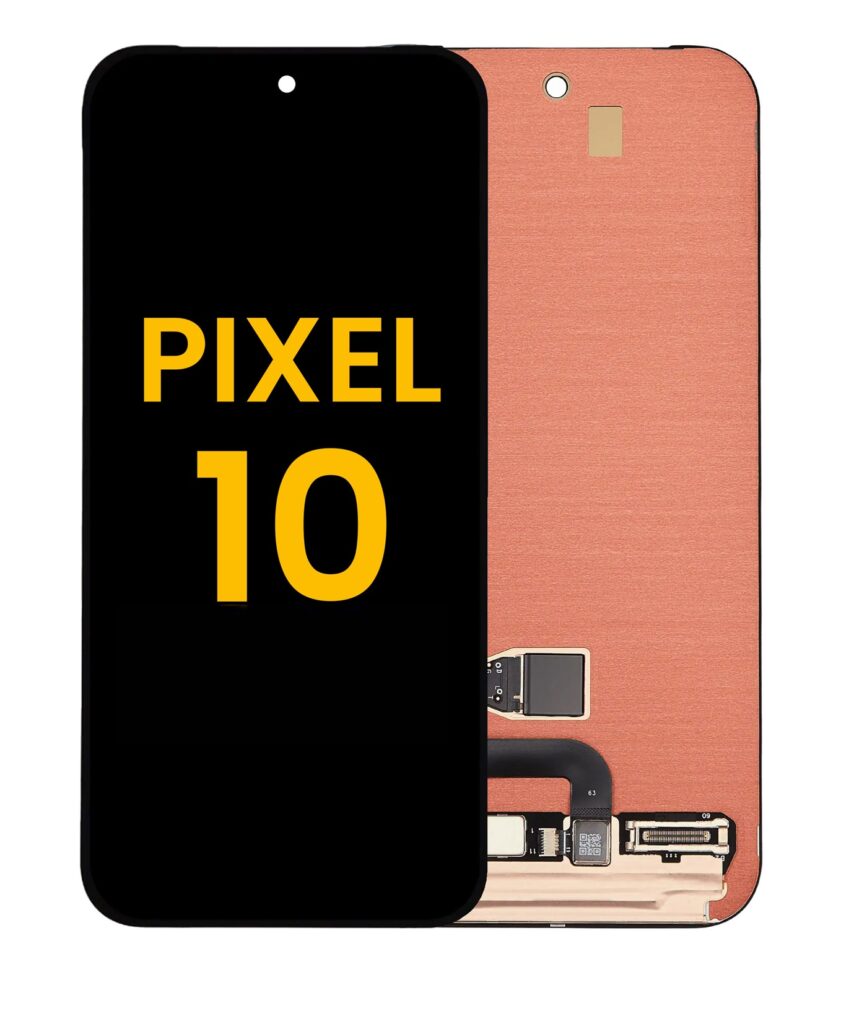
No, a cracked LCD typically requires full replacement.
How long does repair take?
DIY repairs can take 1-2 hours. Professional repairs usually take a few hours to a day.
Will repairing void my warranty?
Yes, DIY repairs may void your warranty.
Advanced Troubleshooting Techniques for Persistent Screen Issues
In some cases, LCD problems on your Google Pixel 10 may persist even after basic troubleshooting or screen replacement. This usually indicates deeper hardware or firmware complications. For example, if the new screen powers on but displays distorted colors or ghost touches, the issue might lie with the motherboard or display controller chip. In such situations, inspecting the internal connectors for dust, corrosion, or slight misalignment can sometimes resolve the issue. Carefully cleaning connectors with a soft brush or compressed air can improve contact and restore proper functionality.
Another advanced step is checking for firmware-related display bugs. Occasionally, system updates may introduce temporary compatibility issues with display drivers. Rolling back to a previous stable version (if possible) or performing a clean system reinstall can help eliminate these rare software conflicts. However, these actions should be done cautiously and preferably with guidance if you are not experienced with firmware management.
Importance of Using High-Quality Replacement Parts
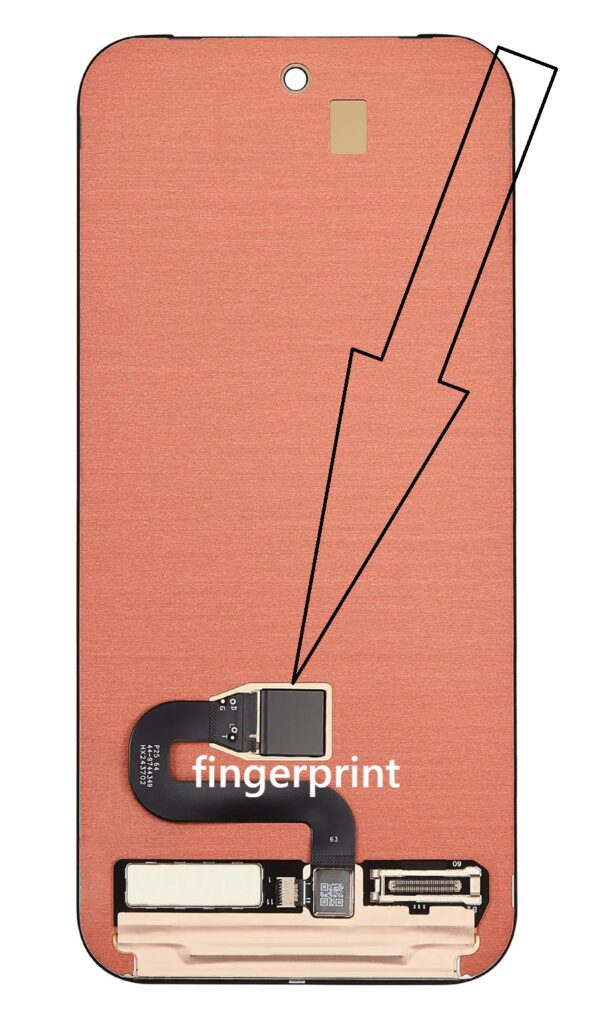
One of the most overlooked factors in screen repair is the quality of the replacement LCD. Not all screens available in the market meet the original manufacturer’s standards. Low-quality screens may be cheaper, but they often result in poor brightness, inaccurate colors, reduced touch sensitivity, and shorter lifespan.
When purchasing a replacement screen for your Pixel 10, always look for parts labeled as OEM (Original Equipment Manufacturer) or high-grade aftermarket components with good reviews. Reliable parts not only ensure better performance but also reduce the likelihood of needing another repair in the near future. Investing in quality upfront often saves money and frustration over time.
Calibration After Screen Replacement
After installing a new LCD screen, calibration is sometimes necessary to achieve optimal performance. While many modern smartphones automatically calibrate displays, you may still notice slight inconsistencies in brightness, color balance, or touch sensitivity.
To address this, adjust display settings such as brightness levels, color profiles, and adaptive display options in your phone’s settings. Additionally, enabling developer options can allow you to test touch inputs and ensure the digitizer is responding accurately across the entire screen. If touch issues persist, a calibration app from a trusted source can help fine-tune responsiveness.
Battery and Screen Relationship
It may come as a surprise, but battery health can influence screen performance. A failing or swollen battery can exert pressure on the display from inside the device, leading to screen discoloration, lifting, or even cracks. If you notice your screen bulging or separating from the frame, stop using the device immediately and inspect the battery.
Replacing both the battery and LCD at the same time can sometimes be the best course of action, especially for older devices. This ensures overall device stability and prevents recurring issues.
Data Protection Before Repair
Before attempting any repair, it is crucial to secure your data. Screen repairs can sometimes lead to unexpected complications, including data loss. Back up your files, contacts, photos, and important documents to cloud storage or an external device.
If your screen is completely unresponsive, you may still be able to connect your phone to a computer and retrieve data using USB debugging or specialized recovery software. Taking this precaution ensures that even if something goes wrong during the repair, your important information remains safe.
Signs of Internal Damage Beyond the Screen
Not all display issues are limited to the LCD itself. In some cases, damage extends to internal components such as the GPU or display connector on the motherboard. Signs of deeper issues include:
- Screen working intermittently
- Lines appearing even after replacement
- Device overheating during use
- Display failing again shortly after repair
If you encounter any of these symptoms, it’s advisable to stop further DIY attempts and consult a professional technician. Continuing to use a device with internal damage can worsen the problem and increase repair costs.
Warranty and Insurance Considerations
If your Google Pixel 10 is still under warranty or covered by insurance, check the terms before proceeding with any repair. Unauthorized repairs can void your warranty, making future claims invalid.
Many users overlook manufacturer repair programs or authorized service centers, which can sometimes offer free or discounted repairs depending on the issue. Exploring these options first can save money and ensure your device is handled by certified professionals.
Time Investment and Skill Level
Repairing an LCD screen is not just about having the right tools—it also requires patience and a steady hand. For beginners, the process may take longer than expected, especially when dealing with delicate components and adhesive materials.
Watching detailed repair videos, reading multiple guides, and preparing your workspace beforehand can significantly improve your chances of success. If at any point you feel uncertain, pausing and reassessing is always better than rushing and causing further damage.
Long-Term Maintenance Tips
Once your screen is repaired, maintaining it properly is key to extending its lifespan. Regularly clean the screen with a microfiber cloth to remove dust and oils. Avoid using harsh chemicals that could damage the display coating.
It’s also helpful to periodically check for software updates, as manufacturers often release patches that improve display performance and fix minor bugs. Keeping your phone updated ensures you’re getting the best possible experience from your device.
The Role of Accessories in Screen Protection
Accessories play a significant role in preventing future LCD damage. A high-quality tempered glass protector adds an extra layer of defense against scratches and cracks. Similarly, rugged phone cases with reinforced corners can absorb shock during accidental drops.
Some advanced cases even come with raised edges to protect the screen when placed face-down. Combining these accessories provides comprehensive protection and reduces the likelihood of needing another repair.
Final Extended Insight
Fixing a Google Pixel 10 LCD screen is not just a technical task-it’s also a decision-making process that involves evaluating cost, risk, and long-term usability. While DIY repairs can be rewarding and cost-effective, they require careful planning and attention to detail. On the other hand, professional repairs offer convenience and reliability but come at a higher price.
By understanding the full scope of LCD issues-from basic troubleshooting to advanced diagnostics you position yourself to handle any screen-related problem with confidence. Whether you choose to repair the device yourself or seek expert help, the key is to act promptly and use the right resources.
Taking care of your smartphone goes beyond fixing problems; it’s about adopting habits that prevent issues in the first place. With proper care, quality accessories, and timely maintenance, your Pixel 10 can continue to serve you efficiently for years to come.
Fixing a Google Pixel 10 LCD screen may seem intimidating, but with the right tools, preparation, and patience, it’s entirely possible. Whether you choose a DIY route or professional repair, understanding the process empowers you to make the best decision for your device.
Always prioritize safety and quality over cost savings. A poorly done repair can lead to bigger problems down the line, so if you’re unsure, it’s best to consult a professional.
By following this guide, you’ll not only fix your current issue but also learn how to protect your device from future damage.
Advertisement