
Advertisement
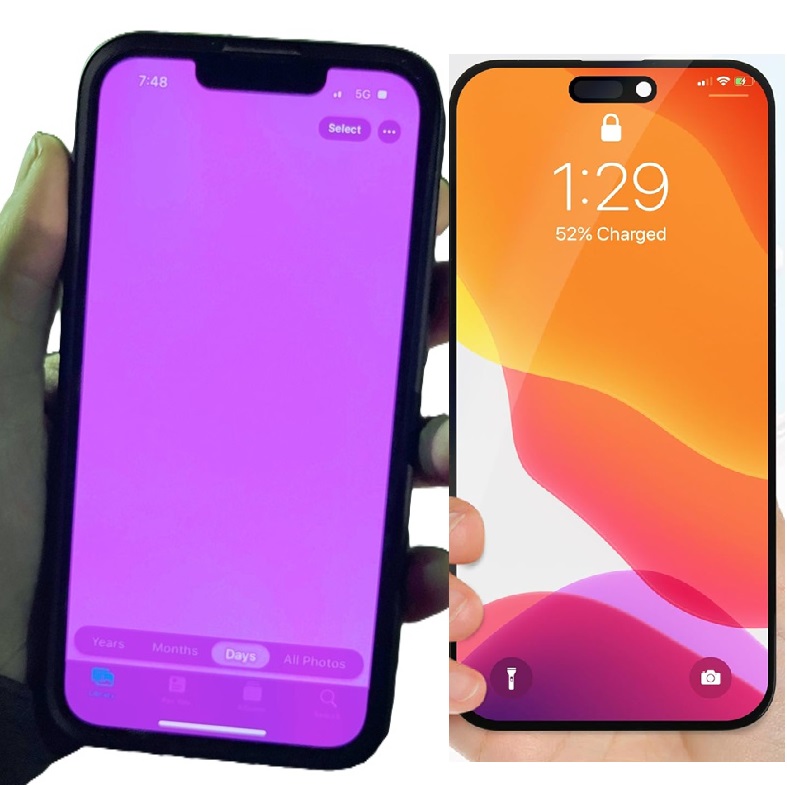
If your newly replaced iPhone 14 Pro Max screen suddenly flashes purple, randomly reboots, or the touch becomes slow and unresponsive, you’re not alone. These issues are common after third‑party screen replacements and can be caused by several hardware or software inconsistencies. This blog explains why the problem occurs and provides practical, proven solutions.
Why your iPhone 14 Pro Max Replaced Screen Flashes Purple
Purple screen flashes and ghosting typically happen when the screen or display connector isn’t perfectly aligned with the phone’s motherboard. The iPhone 14 Pro Max uses a high‑end LTPO Super Retina OLED panel, and even small deviations can trigger instability.
Main Causes
Advertisement
1. Non‑Original or OLED Screen
- Many replacement displays don’t match Apple’s original OLED voltage parameters.
- This causes random purple flashes, touch lag, or display distortion.
2. Loose or Improperly Seated Display Connectors
- If the FPC connector isn’t tightly locked, the phone may:
- Flash purple
- Restart unexpectedly
- Freeze or lag
3. Damage to Display IC or Flex Cable during Installation
- Excess bending of the flex cable can weaken the display communication lines, causing flickers.
4. Software Mismatch after Screen Replacement
- IPhones sometimes detect non-genuine screens and throttle display performance.
- This can also cause touch slow response.
5. True Tone Removal or Unpaired Display
- When the display data is not transferred from the original screen using a programmer, the system may behave unpredictably.
Why your iPhone reboots randomly after Screen Replacement
Random rebooting usually points to:
- Poor-quality aftermarket display
- Overheating due to mismatched screen power consumption
- A pinched or damaged flex cable
- Bad installation causing intermittent shorting
Why Touch Becomes Slow or Unresponsive
Slow touch reaction is another side effect of:
- Incompatible touch IC drivers on third-party screens
- Lose touch connector
- Dust or non-conductive particles lodged between connectors during installation
- Low-quality aftermarket touch layer
Solutions to Fix Purple Flashing, Rebooting & Touch Lag
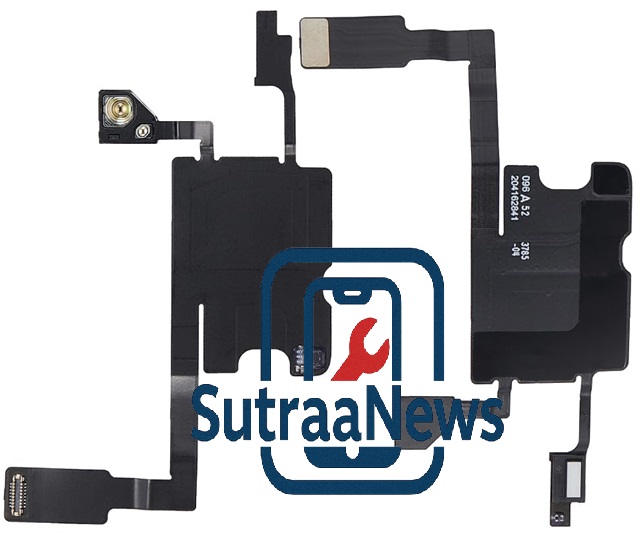
Here are the best repair solutions based on real repair shop experience:
The best 100% solution is to replace the screen sensor flex, some call it earpiece, and change it to new one.
When dismounting the old screen it usually takes a force to pull the old LCD out which may affect the Sensor flex or earpiece.
1. Re-seat the Display Connectors
Ask a technician to:
- Open the phone
- Clean the connectors with contact cleaner
- Properly re-seat and lock each connector
This solves the issue 70% of the time.
2. Replace with a Higher-Grade OLED Screen
There are three screen grades:
- Original Pulled OLED (Best)
- Soft OLED(Good)
- Hard OLED (Most problematic)
If you’re using Hard OLED, upgrading will usually fix:
- Purple flashing
- Touch delay
- Random reboots
3. Transfer Display Data Using a Programmer
Technicians should transfer:
- True Tone data
- Serial number
- Display configuration package
Using tools like:
- JC V1S programmer
- QianLi programmer
This helps stabilize color and voltage parameters.
4. Run a Hard Reset and Update iOS
Sometimes software becomes unstable after screen changes.
Do this:
1. Press Volume Up
2. Press Volume Down
3. Hold Power until Apple logo appears
Then update to the latest iOS.
5. Check for Flex Cable Damage
If the ribbon cable is slightly torn or pinched, the screen will:
- Flicker
- Turn purple
- Restart
A technician may need to replace the screen entirely.
6. Disable Auto-Brightness (Temporary Fix)
Some aftermarket screens can’t handle light sensor changes.
Go to:
Settings → Accessibility → Display & Text Size → Auto-Brightness (off)
7. Replace the Display Again (If Necessary)
If all troubleshooting fails, the screen is almost certainly faulty.
When to Visit a Professional Repair Shop
Seek expert help immediately if:
- Purple flashes occur frequently
- Touch becomes completely unresponsive
- Your phone restarts during calls or charging
A good repair shop will:
- Diagnose motherboard issues
- Test screen compatibility
- Install original-quality OLED panels
Final Thoughts
Purple screen flashing, touch lag, and rebooting are usually caused by:
- Incompatible replacement screens
- Poor installation
- Faulty connectors
Using a high-quality OLED, ensuring correct installation, and transferring display data can solve the problem permanently.
Advertisement